/Biblio-logo-darkbrown-01.svg)
Due to a data breach, it is no longer possible to borrow books in Biblio if you have only linked a library card to your user account. This applies to Swedish users.
For security reasons, you must now specify an email address as your login method so that you can log in with your email instead of your library card.
Your library card number and a simple four-digit PIN are no longer sufficient as a login method if you want to borrow books.
It's important that you don't create a new user account; instead, simply add email as a login method to your existing user account.
Set your email address as your login method
The first thing you need to do is update your Biblio app to the latest version from the App Store or Google Play Store.
- Log in with your library card number as usual
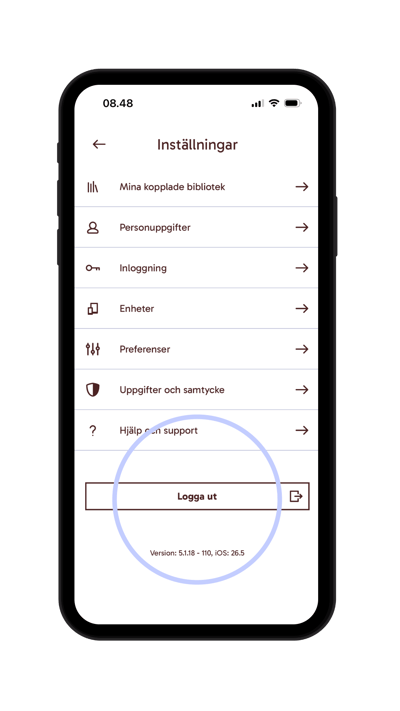
- Go to “Settings”
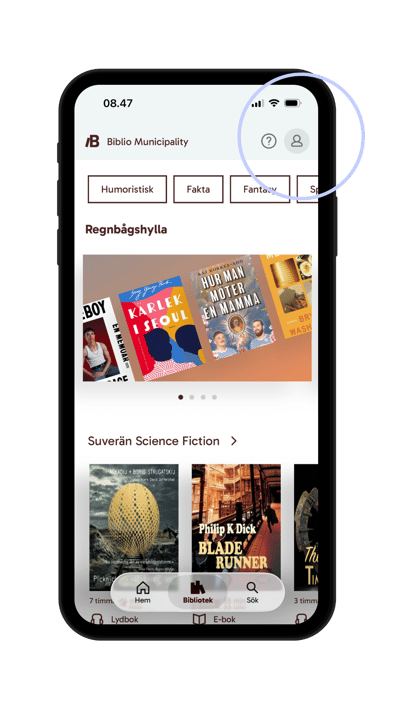
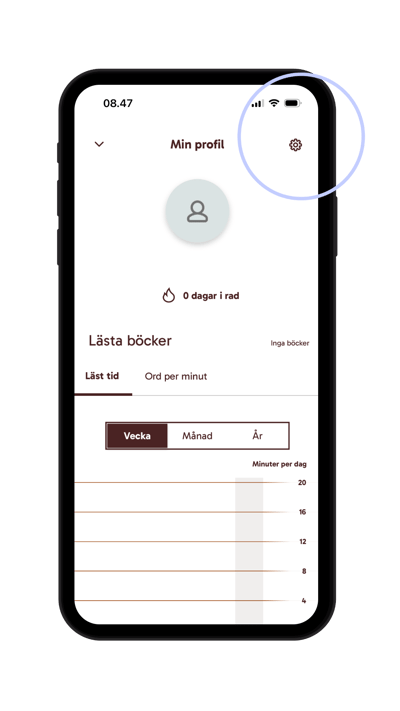
- Go to “Login”
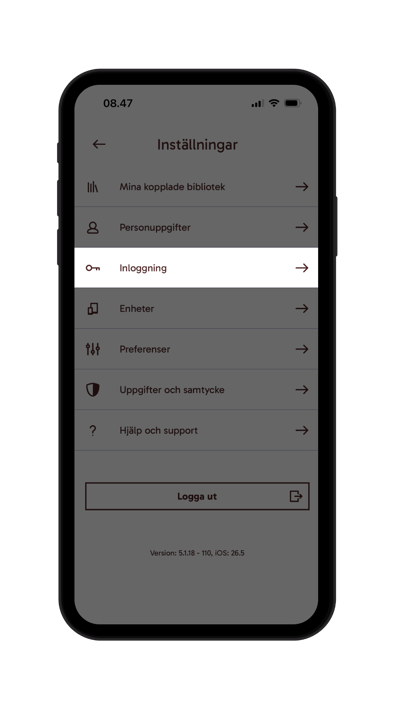
- Tap “Create”
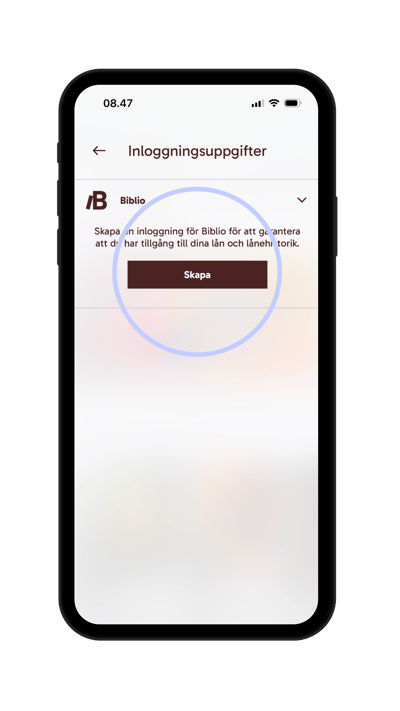
- Enter your email address and create a password
The password must be at least 6 characters long.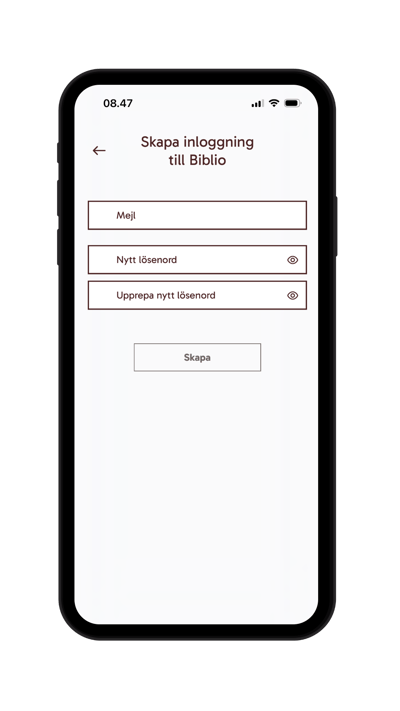
- Tap “Create”
- You will now see a message stating that you must confirm your email address.
Click “Send Email”/BIB%20-%20Knowledge%20Base/email-verfication-SE.png?width=400&height=711&name=email-verfication-SE.png)
- Check your inbox
You will now receive an email asking you to confirm your email address.
Be sure to check your spam folder—the email may have ended up there. - Next, you must click “I have confirmed my email”
- Log out of Biblio
- Log in again – select "Continue with email"
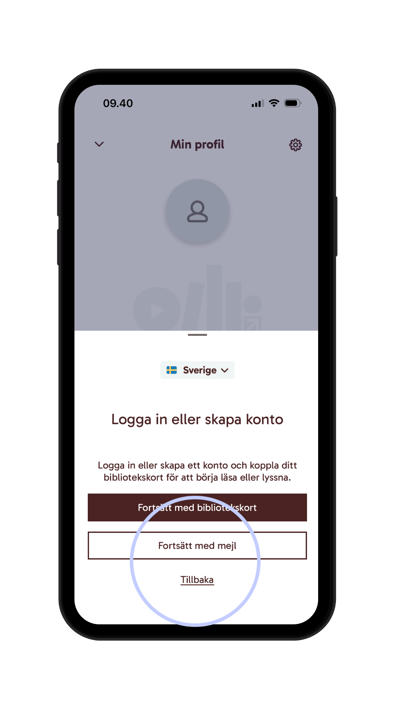
You can now borrow books from Biblio again!
We hope you enjoy your reading!
Why haven't I received an email to confirm the email address I'll use to log in?
Remember to check your spam folder—the email may easily end up there.
If the email isn’t in your inbox or your spam folder, you may also need to whitelist the sender in your email client.
Some email clients also require that we, as the sender, be added to the whitelist for the email to be delivered. In that case, this address must be added to the whitelist: *@biblio.app
Are you still having trouble loaning a new book?
In addition, some libraries require users to change their PIN in the library system. We therefore recommend that you visit your library’s website for information on the specific policies that apply to your library.
Have you received a new PIN for your library card?
If you’ve received a new PIN for your library card, you’ll need to go to “My Linked Libraries” in “Settings” and update your library cards.
Remove your library card from your user profile and add it again using the new PIN.
See the guide here for instructions on how to remove a library card from your user account: Replace Your Library Card
/BIB-graphic-ribbon-white.png?width=2000&name=BIB-graphic-ribbon-white.png)
/BIB-Biblio-logo-tagline.svg)
/BIB-wedobooks-logo.svg)